Staffing
This page allows users to view all of the employees assigned and unassigned to initiatives.
In this article, you will learn how to manage employees on initiatives.
Updating employee's work assignments
It is possible to update the work assignments of an employee.
-
Go to the Staffing Dashboard
-
Select the card of the employee
-
A window will appear. You can update the employee's assigned time depending on their projects and the period.
Example of an employee's staffing
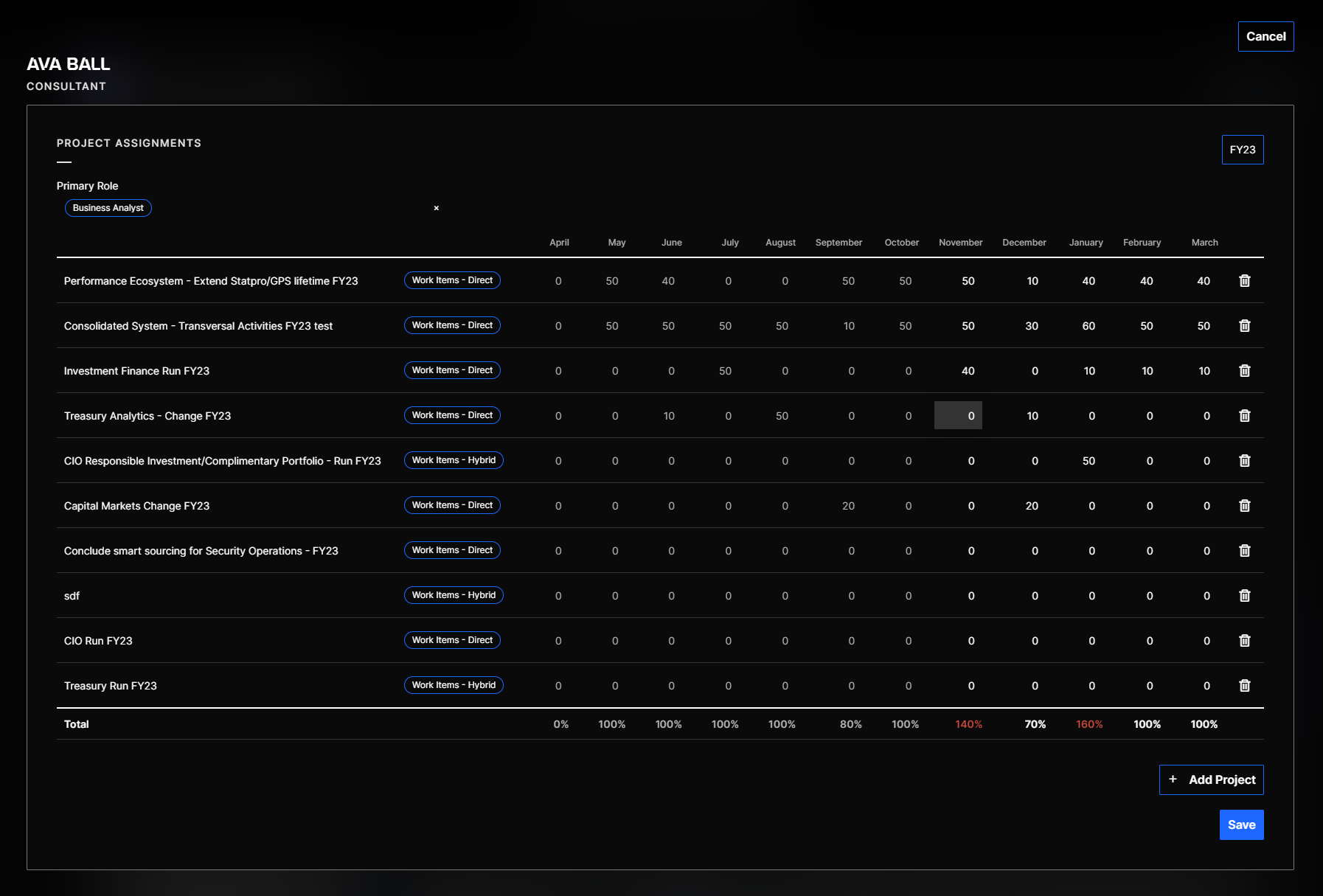
You can not enter more than 100% for an employee for a specific initiative. If you do this, the save button will be greyed out.
Adding an employee to an initiative
There are two ways to add an employee to a project.
With the employee name, you can add an employee to a project:
-
Go to the Staffing Dashboard
-
Select the card of the employee
-
Click on +Add Project
Add project button
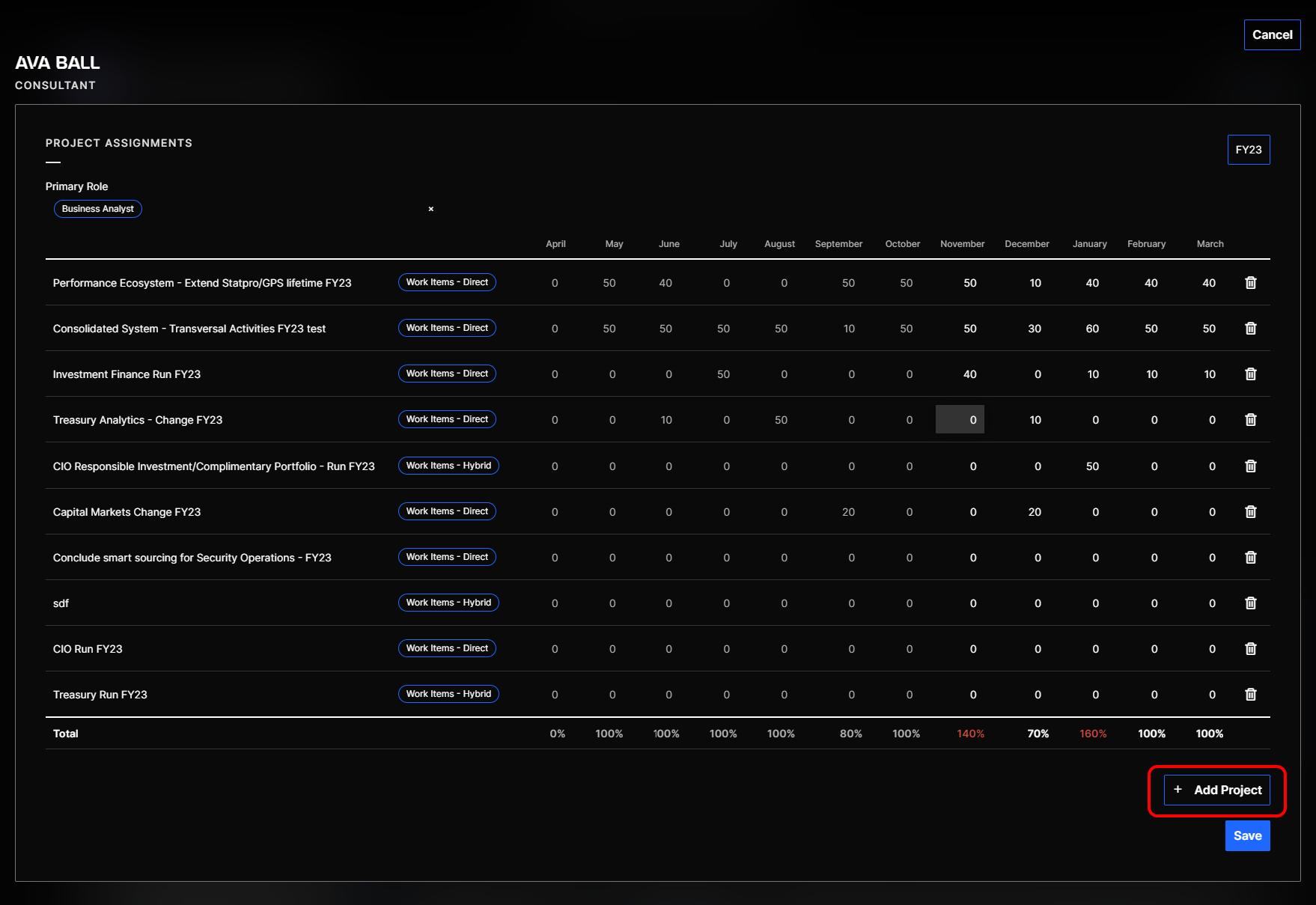
- Select the project and the allocation type and click on save
With the project name, you can add an employee to the current assessment of the project:
-
Go to the project page
-
Click on Perform review → 3. Capacity management → +Add employee, and select the employee and the allocation type
-
Save the assessment
When we add a new employee to the system, the synchronization process takes place at 3AM EST in a daily basis.