Business case management
The Business Case Management section shows you how to manage initiatives. You will learn how to create a business case and update it.
Depending on your role, you might not be able to complete all of the actions listed below. Please review this link to see the permission model details.
To manage a business case, it is important to know that they follow a specific workflow. At each step of the process, it is possible to do some actions depending on the role you have.
The chart below shows a business case workflow :
Business case workflow

The following sections will give you more information on how to use a business case.
- Creating a business case
- Updating a business case
- Viewing the information of a business case
- Linking a business case
- Activity feed
Creating a business case
- Go to Create → New Business case in the top right corner of the page
Create button
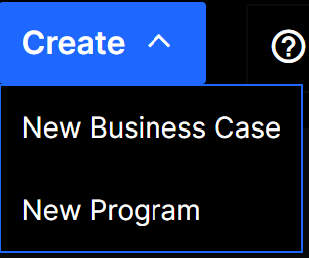
- Select the option New Business Case and a new window will open.
Business case window - Name and Description
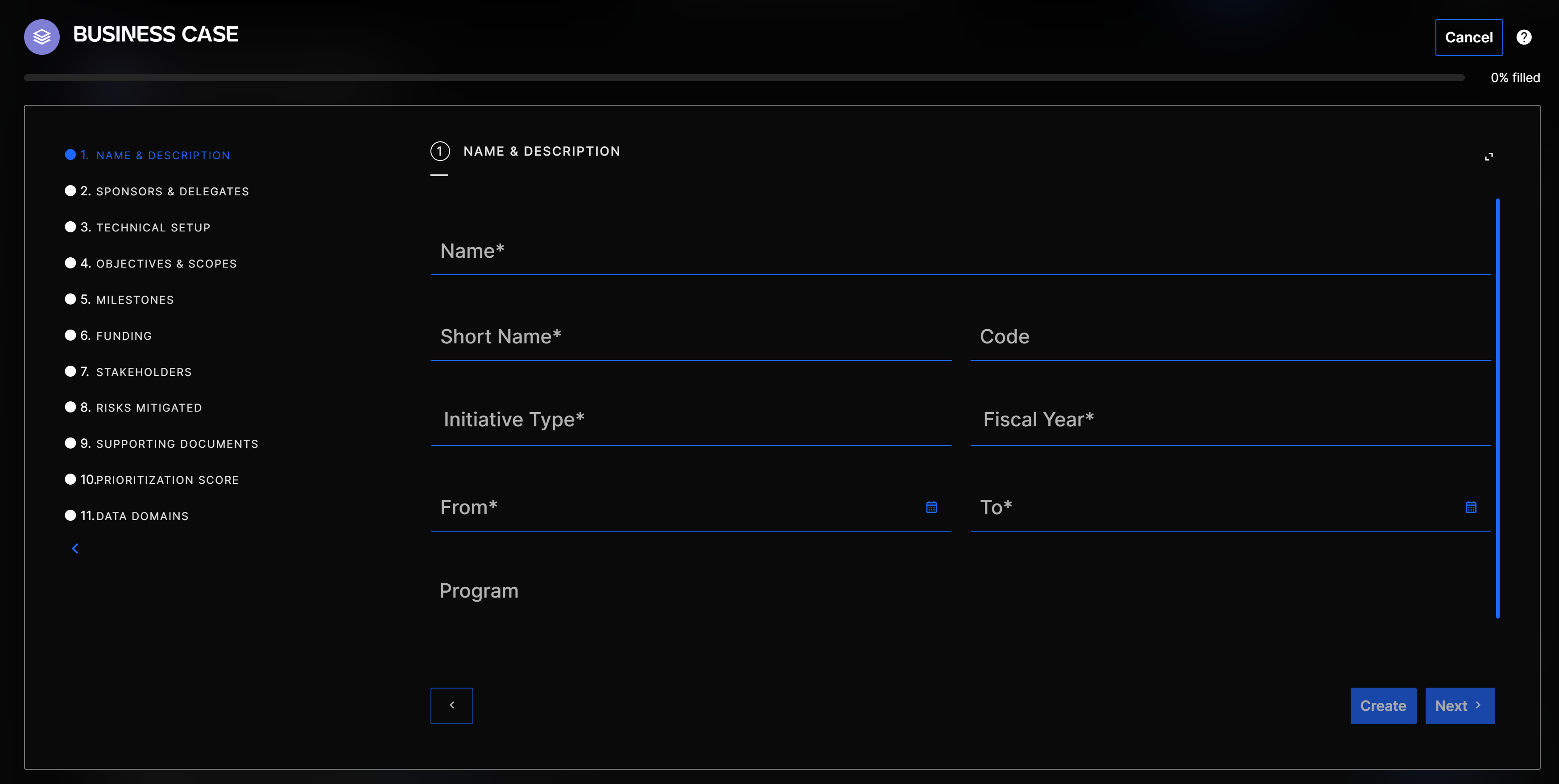 Complete all of the mandatory fields.
-
Name & Description: The first step contains general information such as the name, the initiative type, the fiscal year and a short description
-
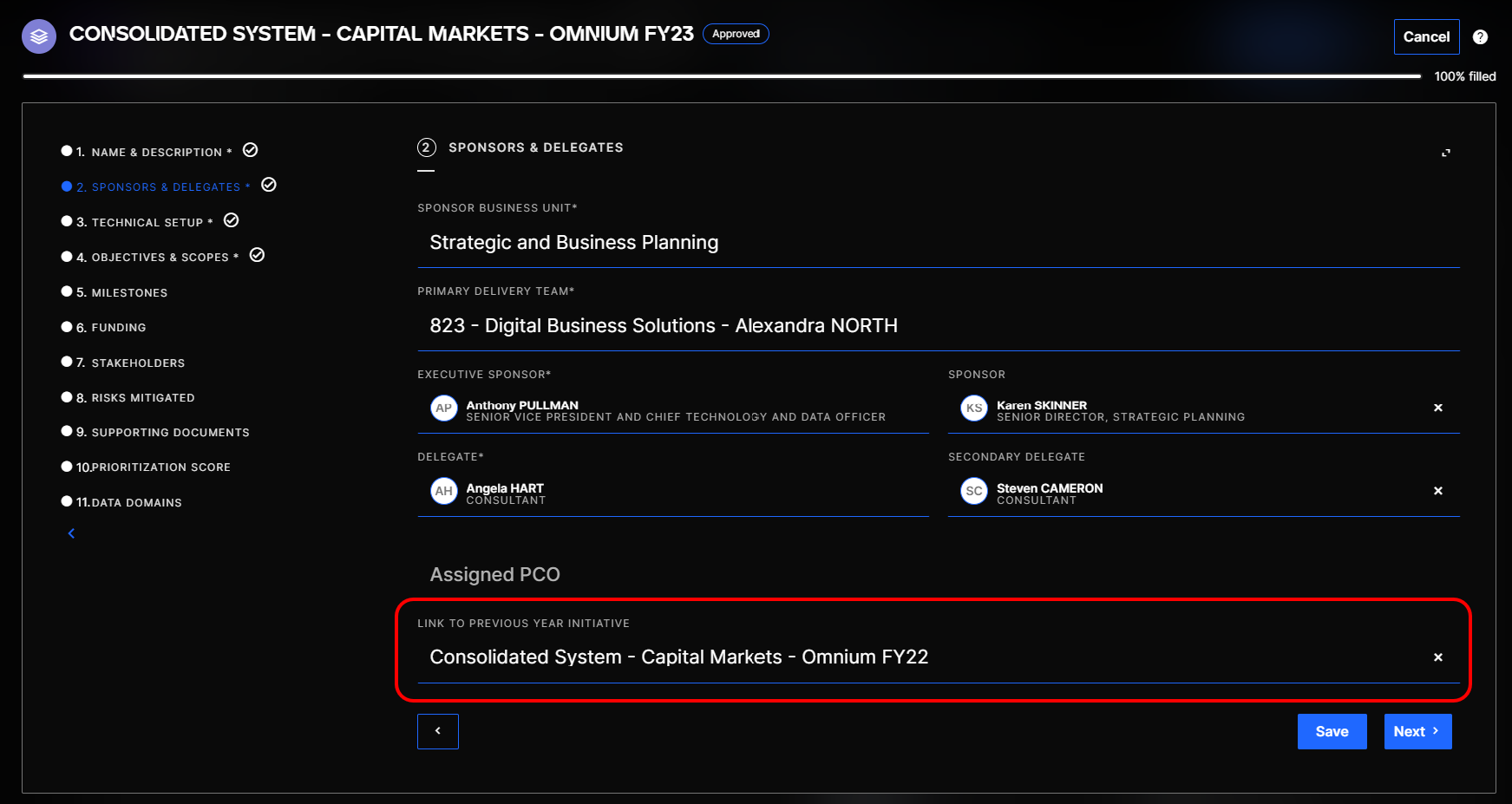
Sponsors & Delegates: In this section, you will need to delect a business unit, a delivery team and the main roles. You can also link an initiative in this step by selecting a previous business case on the list (for more information on business cases link, click here).
-
Technical setup: In this step, it is mandatory to fill in the Work Provider or the Work Provider ID . By default and to avoid errors, the Work provider is going to be set as Azure DevOps.
-
Objectives & Scopes: Fill in all the required fields
-
Milestones: Create milestone groups and milestones (for more information on Milestones, click here)
-
Funding: In this step you must complete all of the required resources fields e.g. consultants, FTE employees, Software, Legal, etc. Certain fields are automatically filled based on the previous steps. Average Rate is completed based on the Delivery Team chosen before, and Estimated FTExmonth is calculated with the information added in the Milestones step.
-
Stakeholders: Select the stakeholders of the project from the list.
-
Risks mitigated: Select the risks for your project. The risks display in the list depends on the Sponsor Business Unit.
-
Supporting documents: You can use this section to attach documents.
-
Prioritization score: Two forms Value and Cost/Riskiness are available to define the project.
-
Data domains: You can select data domains from the list or enter new data domains.
-
After completing all of the mandatory fields, you can save the business case
Updating a business case
-
Go to the business case page you want to update.
-
Click on the button
 on the right of the page and choose Open business case
Open Business Case button

- When updating certain fields, do not forget to click the save button.
- If the business case is approved, the funding can not be updated anymore.
- After submitting a business case, it is still possible to modify the data by unlocking the business case.
Viewing the information of a business case
-
To view the information of a business case, go to the business case page.
-
Click on the button
and choose Open Business case -
From this window, you should be able to see all of the tabs of the business case.
Linking a business case
There are two ways in which you can link a business case:
-
When creating a business case, it is possible to add a link to a previous business case. This link is only there to inform the user.
-
Go to Create → New Business case → 2. Sponsors & Delegates
-
In the field Link to previous year initiative, select the business case you want to link with the new one.
-
Business case window - Sponsors and Delegates
-
If you want to create a business case based on a previous one, it is possible to use the Link business case button. In this case, most of the data will be carried over to the new business case.
-
Go to Create → New Business case
-
Select Link business case
-
Select the fiscal year of the business case you want to create
-
Choose the previous initiative you want to link with the new one
-
Linking a business case
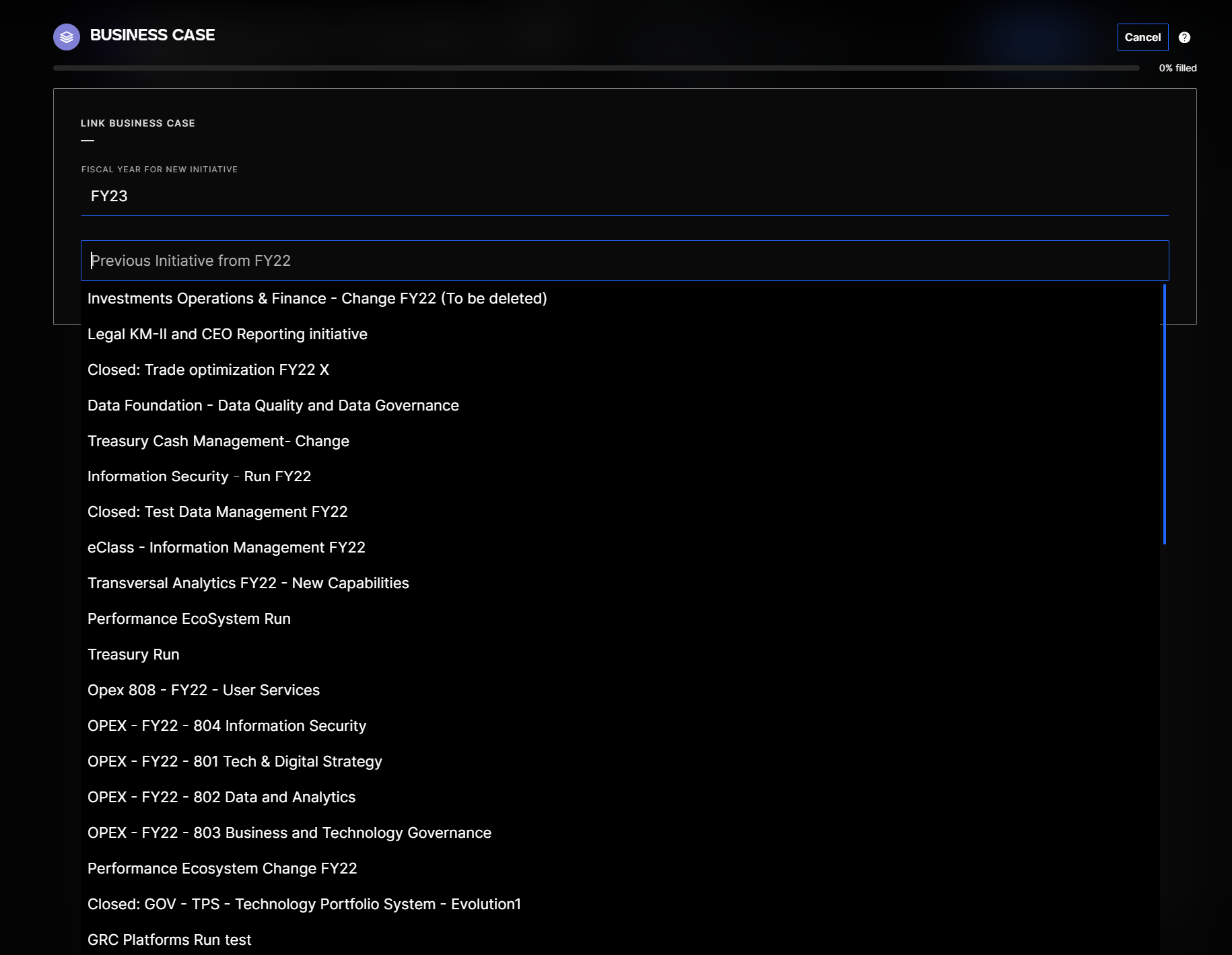
- Click on Create. The business case is now created based on the data of the previous case.
For the second type of link, closed and completed milestones are not carried over to the new business case.
Activity feed
When you are on an initiative page, it is possible to communicate with the initiative team. In this activity feed, when doing some actions, the feed will be populated by describing the updates made on the initiative. You can also tag your colleagues that are in the team.