Monthly assessment
The monthly assessment is a governance process which allows users to perform a review of their initiatives on a monthly basis. This process allows users to review their objectives and when necessary, to update the info of their initiatives.
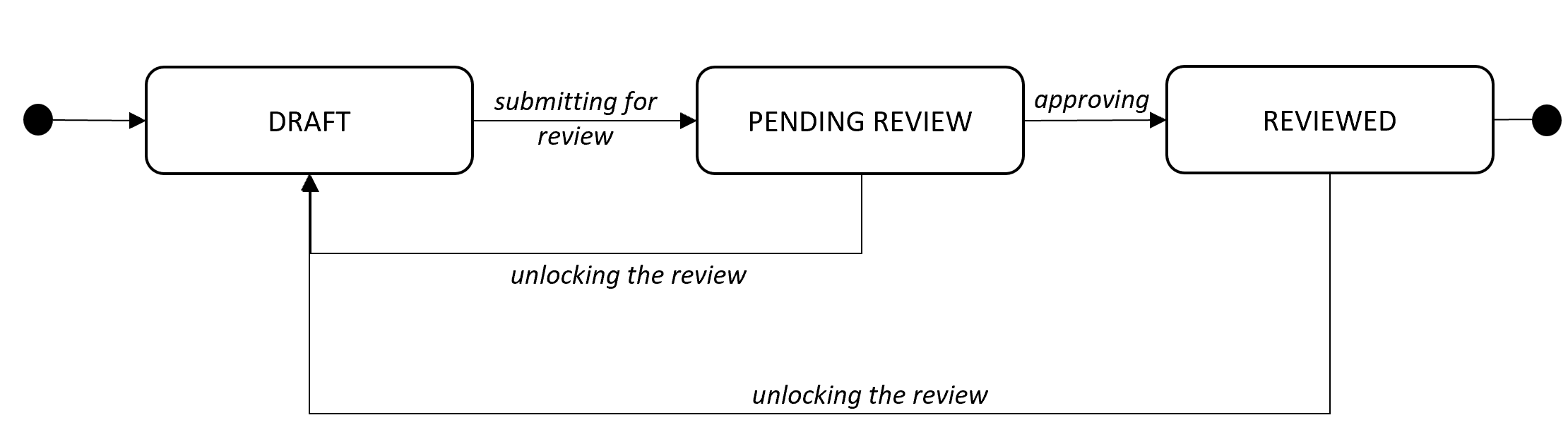
While it is being completed, an assessment can have three different statuses. See the assessment workflow below.
Assessment Workflow
- Viewing an assessment
- Doing and submiting an assessment
- Approving an assessment
- Unlocking an assessment
Only certain roles are allowed to see/do the actions below. Click this link to see the permission model detail.
Viewing an assessment
It is possible to view all of the assessments related to an initiative :
-
Go to the initiative for which you would like to see the assessments.
-
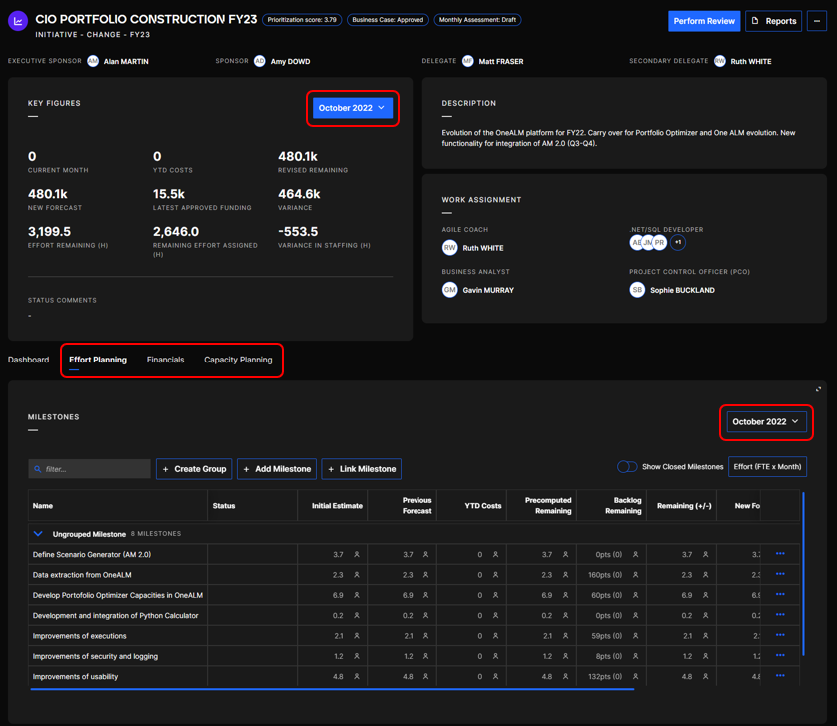
You can view the assessments for a full month from the initiative page by selecting a month in the drop down list. The key figures are shown on the right, and the following tabs are shown at the bottom of the page: Effort Planning, Financials and Capacity Planning.
Example of an initiative page
Doing and submiting an assessment
-
Select the initiative you want to assess
-
Click on the Perform review button at the top right corner of the page and a new window will open:
Perform review button

-
Complete the following steps: a. Review costs: Fill in a remaining amount for each type of resources if necessary.
b. Effort planning: Update the status of milestones and their start and end dates if necessary. It is also possible to add, link or delete milestones.
c. Capacity management: Update the allocation of assignments for each employee.
d. Status update: Select a status for the four sections. In this step, you can also request a budget change by filling the Requested Funding Amount (for more info on Change request, click on this link)
-
Click on Submit to submit the assessment. The assessment is now on Pending review, it needs to be approved.
Approving an assessment
-
Go to the Initiative Dasboard, select the initiative you want to approve by using the filter section or the search bar
-
Click on Perform Review
-
Review the assessment and click on Approve
-
The assessment has been approved. It is now reviewed.
Unlocking an assessment
-
Go to Initiative Dasboard, select the initiative you want to unlock by using the filter section or the search bar
-
Click on Unlock Monthly Review
-
It is now possible to update data of the assessment.