Getting started
QuartzPilot manages all aspects of a project (budget, staffing, timesheets, assessments). It creates projects and assigns employees to projects who can allocate their hours on their timesheets. It allows users to perform assessments each month.
Permission model
In this application, there are different types of actions that need specific rights. There are six main roles in QuartzPilot:
Permission model
| Business case | Assessments | Staffing | Timesheets | Program | Milestones | |
|---|---|---|---|---|---|---|
| PCO | Can submit, update, unlock business cases | Can edit, submit, unlock assessments | Can edit resource assignments | Can submit, recall their own timesheets | Can view programs | Can create, edit milestones |
| PCO Manager Approver | Can approve, submit, update, unlock business cases. Can edit the funding | Can edit, submit, unlock assessments | Can edit resource assignments | Can submit, recall their own timesheets. Can approve timesheets of others | Can create, edit programs | Can create, edit milestones |
| Sponsor, Delegate, Other contributor | Can submit, update, unlock business cases | Can edit, submit, assessments | Can edit resource assignments | Can submit, recall their own timesheets | Can view programs | Can create, edit milestones |
| Delivery team delegate | Can submit, update, unlock business cases | Can edit, submit assessments | Can edit resource assignments | Can submit, recall their own timesheets. Can approve timesheets of their team | Can view programs | Can create, edit milestones |
| Program management read only | Can view business cases | Can view assessments | Can view resources | Can submit, recall their own timesheets | Can view programs | Can create, edit milestones |
| Generic user | Can view business cases except the funding part | Can view assessments | Can view resources | Can submit, recall their own timesheets | Can view programs | Can create, edit milestones |
Navigation features
When opening the application, you should automatically be directed to My dashboard page. This page allows you to have a global view on your tasks. To have more details on this page, please review this link : My Dashboard.
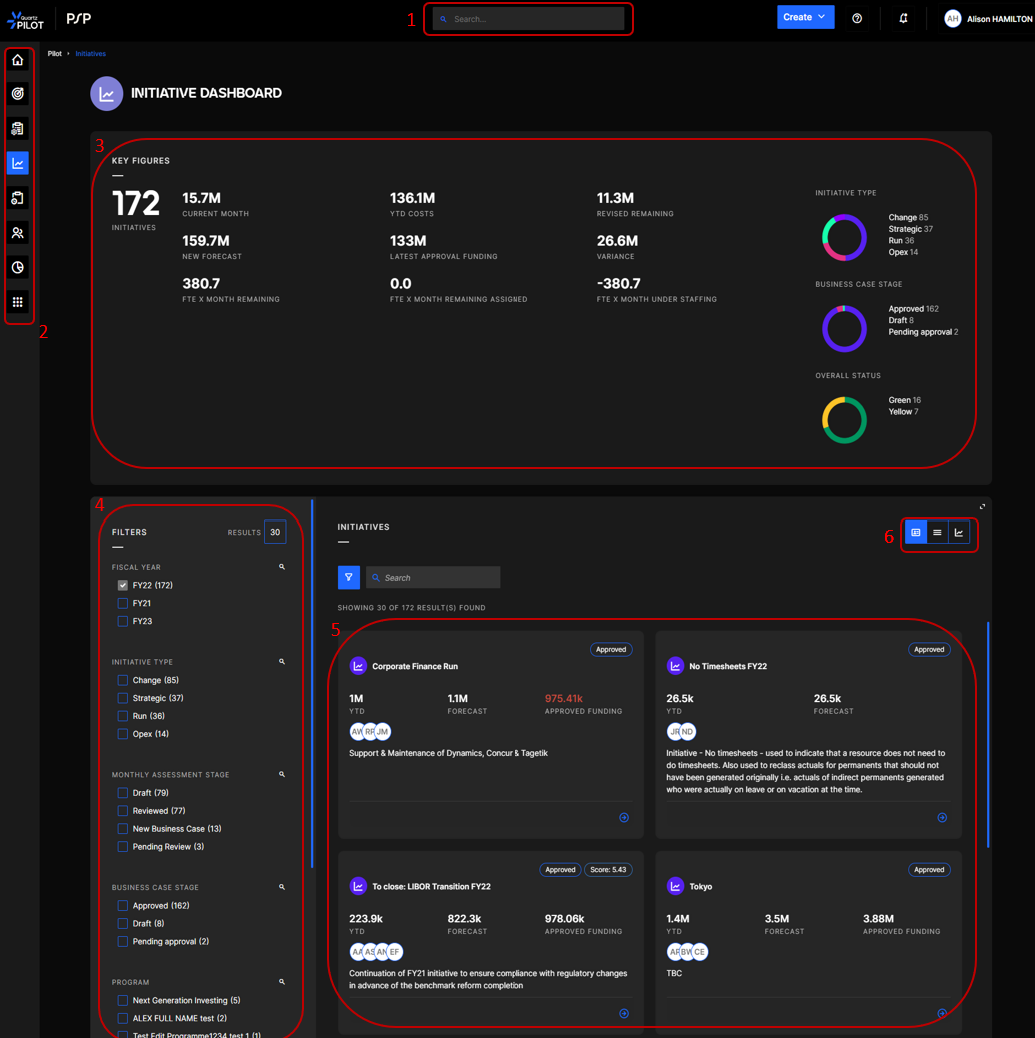
We will describe how to navigate through a QuartzPilot page by explaining the initiative dashboard page. Indeed, each page of this app behaves the same way except for My Dashboard page.
In section 1, you can use the spotlight search. Section 2 contains a list of all available menus. Section 3 should contain the key figures available in Pilot. Section 4 contains a list of filters that should help you filter out some initiatives if you are looking for a specific initiative. In Section 5, you should see all of the available initiatives. You can also use the buttons in Section 6 to change the layout of the initiatives.
Initiative dashboard
Saved search functionnality
On the pages "Initiative Dashboard", "Timesheet approval", "Program Management Dashboard" and "Staffing", users can create saved searches in order to ease their use of the platform.
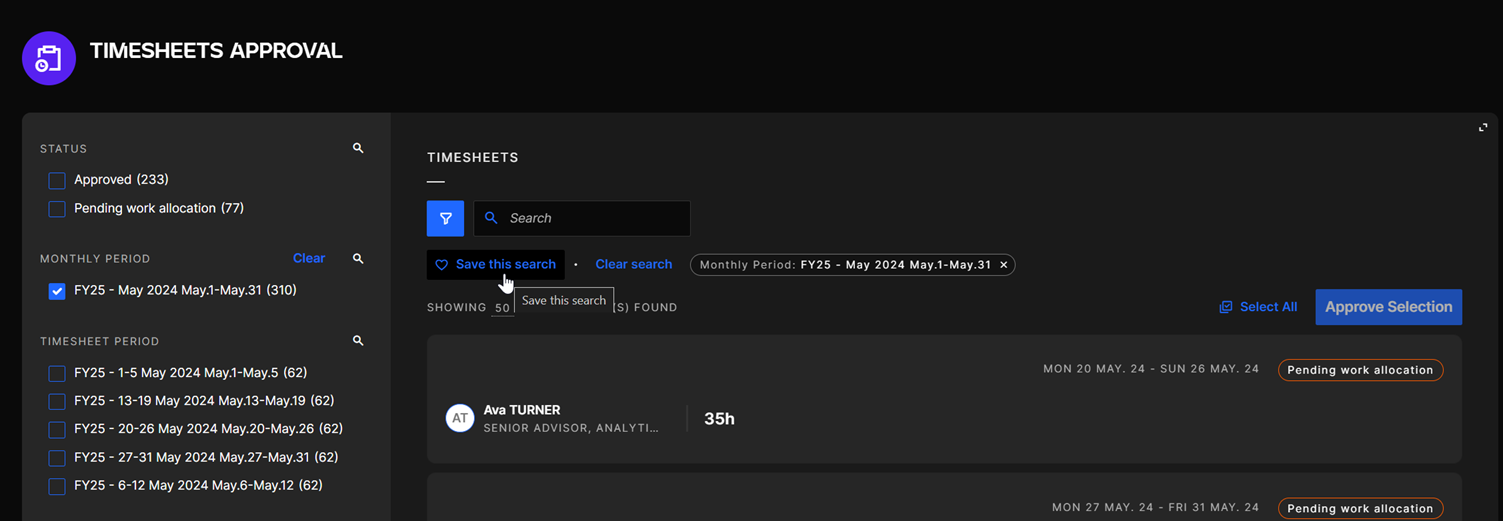
As soon as filter is selected, or a key word entered in the search bar, users will see the button "saved this search" appears bellow the search bar :
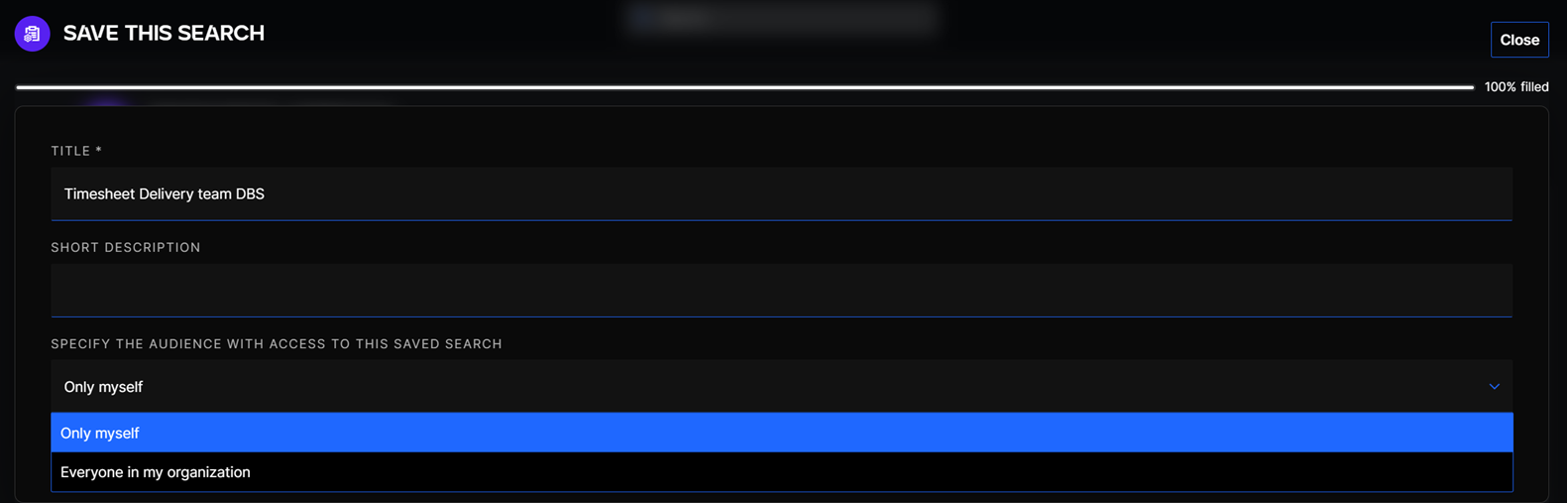
If the user click on it, a modal will appear where user will be able to define the name of the search, and decide whether he wants to share it with everybody, or keep it for himself :
Finally the saved searches will then be accessible on the left section of the page, right above the filters.
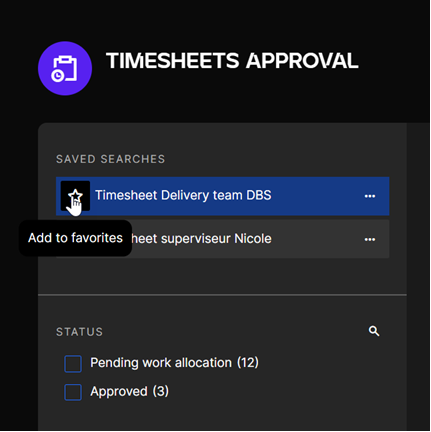
In this section he will then be able to manage some favorite, that will be displayed at the top of the list :